EIC Updater App

ADD HYSTERESIS TO YOUR MANOMETER

Free firmware upgrade for EICM and RDM3 manometers

What Hysteresis Does

Prevents the manometer readings from jumping around in both the live and average display mode. It uses the past readings to measure a minimum change before updating the screen. We also created a more sophisticated method for zeroing the device to counteract the effects of button presses and hand movement on the sensor.

Without hysteresis: Reading jumps around

With hysteresis: Reading stays steady

Do I need this?

Check your manometer

Turn on your manometer and press the button until you reach the third display. Here you will see the device information including the version. The full hysteresis feature is available in version 0.11 and above. If your manometer is lower than 0.11, follow the instructions below to update the firmware.

How to turn it on

1. Upgrade the firmware

Install the upgrade on your manometer with the EIC Firmware Updater app. See the steps below.

2. Update GammaGuard

Make sure GammaGuard is up to date.

3. Set the hysteresis

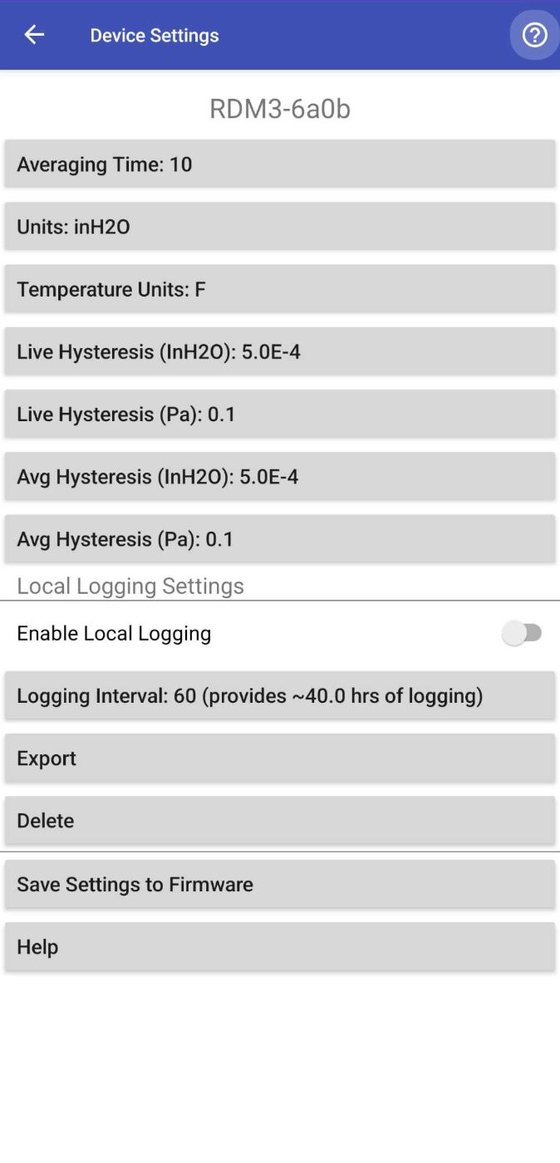
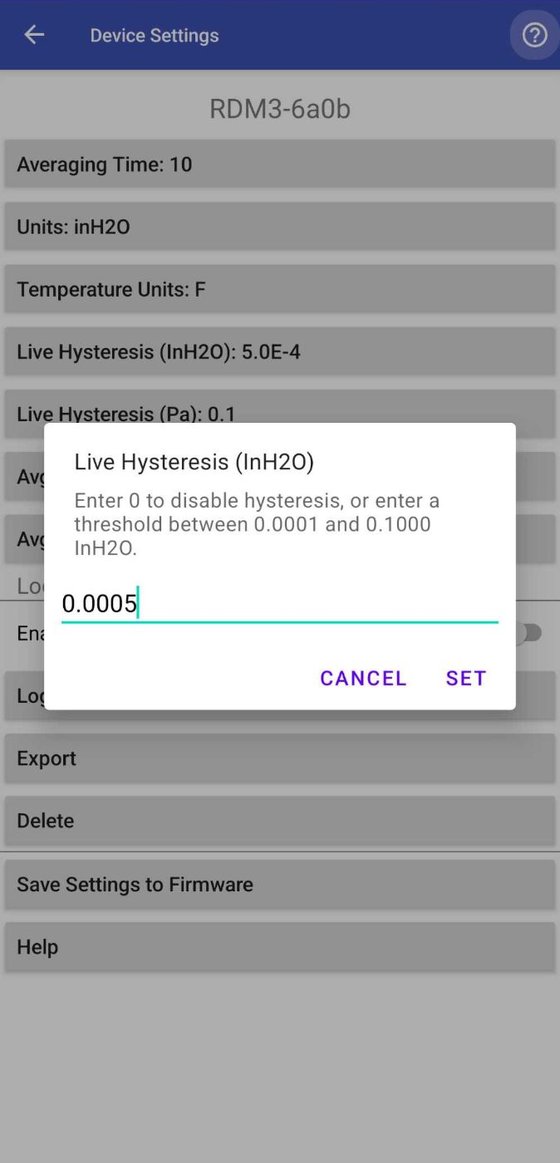
In GammaGuard while connected to a manometer, open the device settings and set Live Hysteresis and/or Avg Hysteresis. Enter 0 to turn it off, or a value from 0.1 to 10 Pa (0.0001 to 0.1 inH2O). The default values are 0.1 Pa and 0.0005 inH2O.

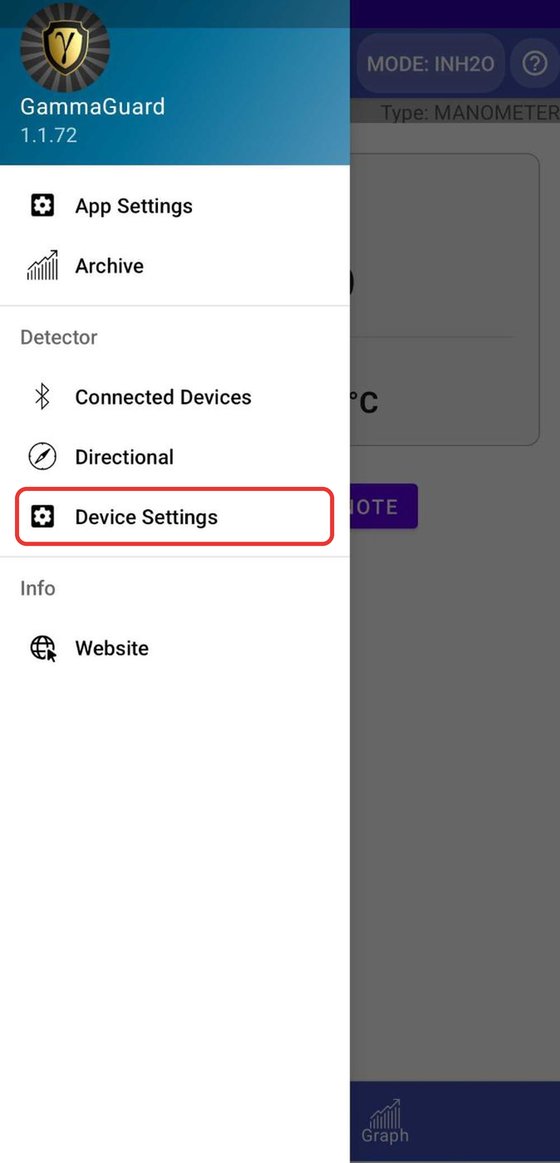
Find Device Settings in GammaGuard
Find Live and Avg Hysteresis values
Set the values to match your preferences and save settings to firmware so they are remembered for next time

Upgrading Your Manometer's Firmware

The EIC Firmware Updater app installs the upgrade over Bluetooth. You’ll need an Android phone running Android 6.0 or later. Each manometer takes a few minutes.

Before you start

  • Turn on Bluetooth on your phone.
  • Turn the manometer on and keep it close to your phone.
  • Disconnect the manometer from GammaGuard or any other app first.
  • Keep the manometer powered on until the upgrade finishes.
  • Saved settings changed from GammaGuard will not be affected.

Upgrading one manometer

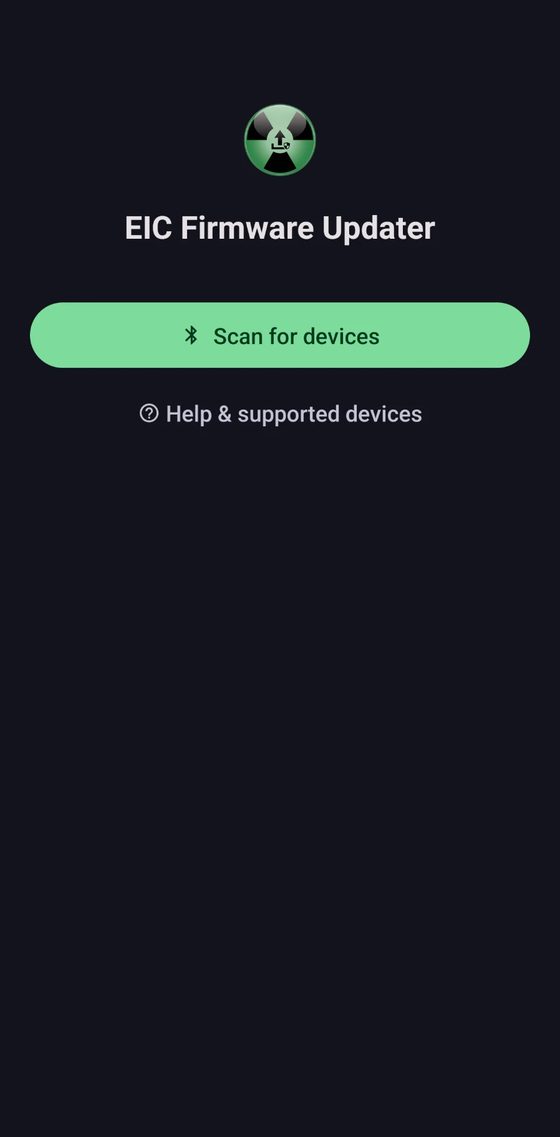
1. Open the app

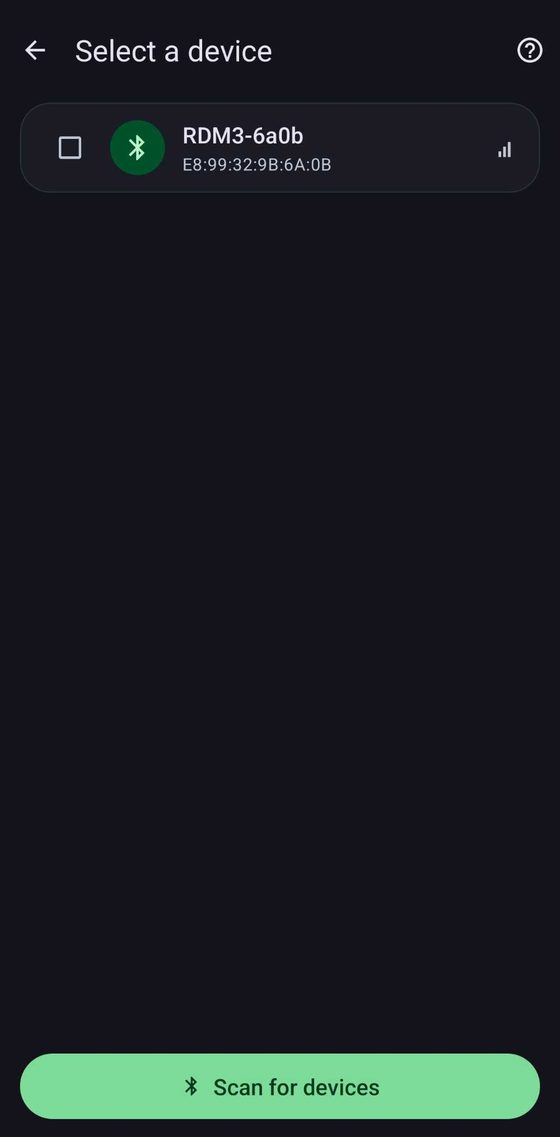
Open EIC Firmware Updater and tap Scan for devices.

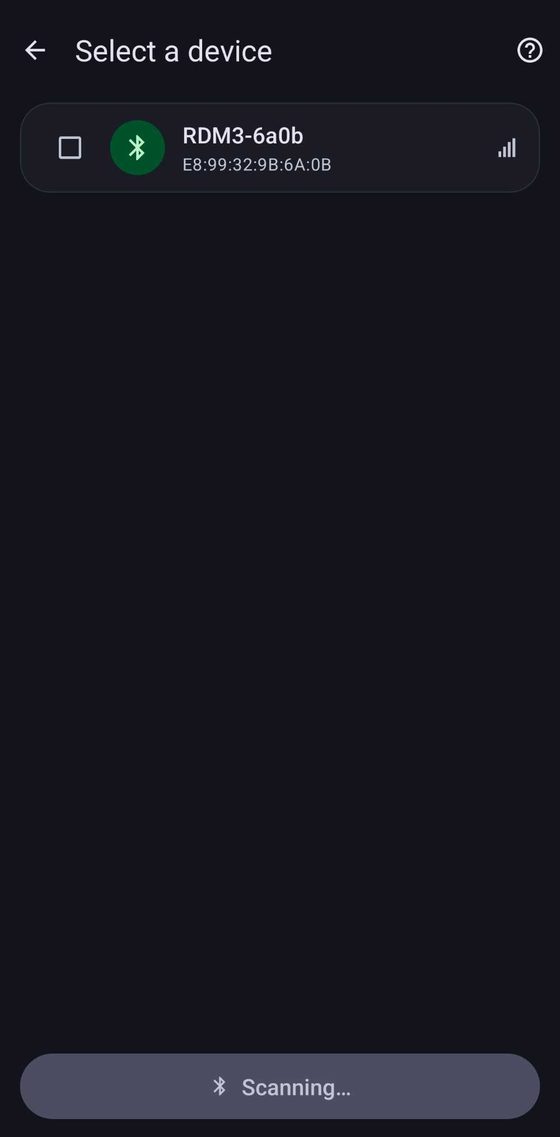
2. Find your manometer

Nearby manometers appear as they’re found, listed as EICM-… or RDM3-…

The number after RDM3- or EICM- can be found on the info screen on your manometer.

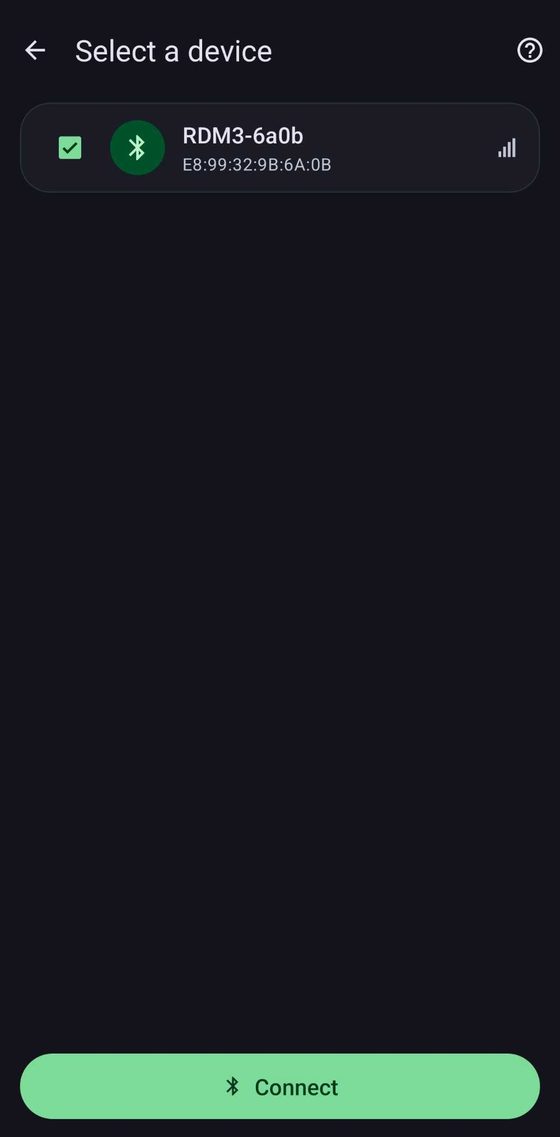
3. Select it

Tick the box next to your manometer, then tap Connect.

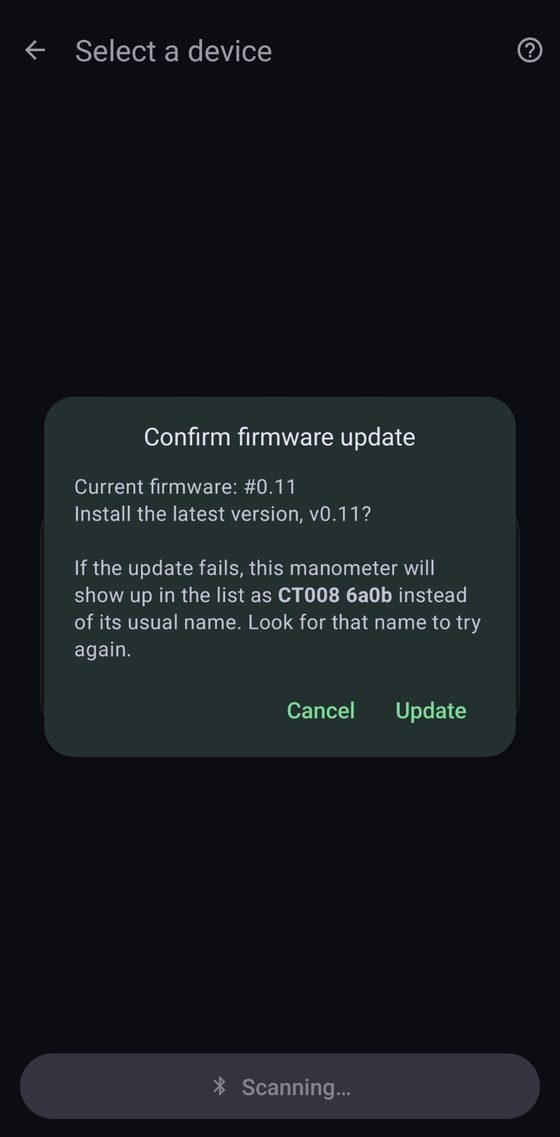
4. Confirm the update

The app shows the firmware currently installed and the version it will install. Tap Update.

Here it will also tell you the name of manometer as it would appear after a failed update. Remember this in case you need it later.

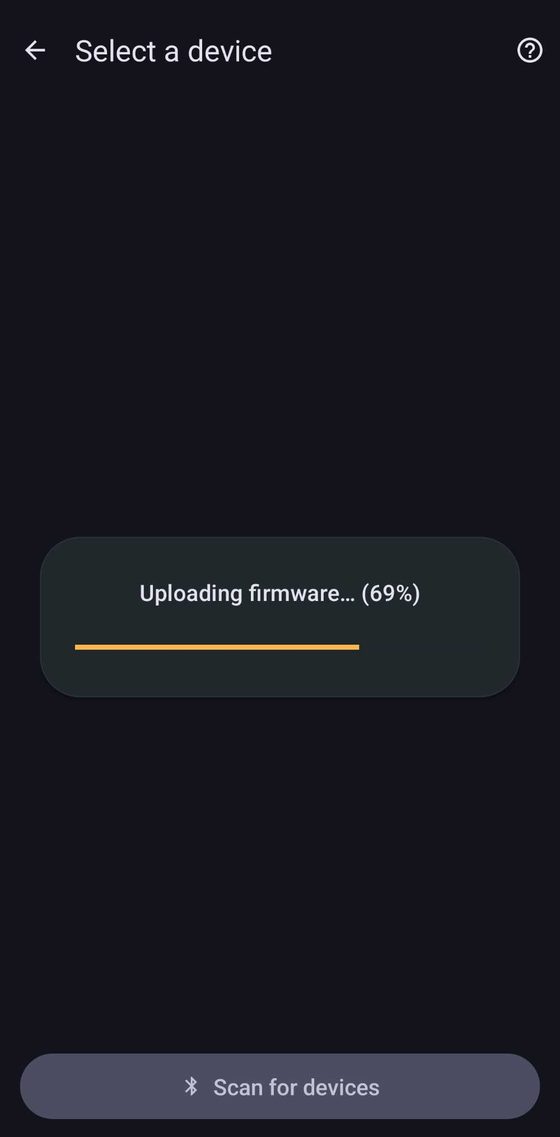
5. Wait for the upload

Keep the manometer on and nearby while the firmware uploads. This takes a few minutes.

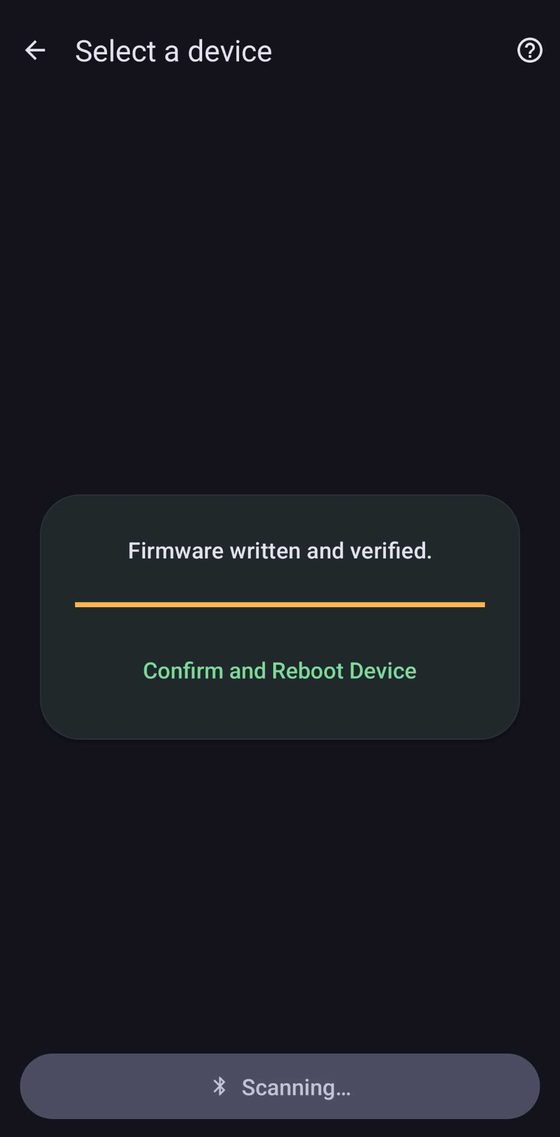
6. Confirm and reboot

When you see “Firmware written and verified”, tap Confirm and Reboot Device. The manometer restarts with the new firmware.

Upgrading several manometers at once

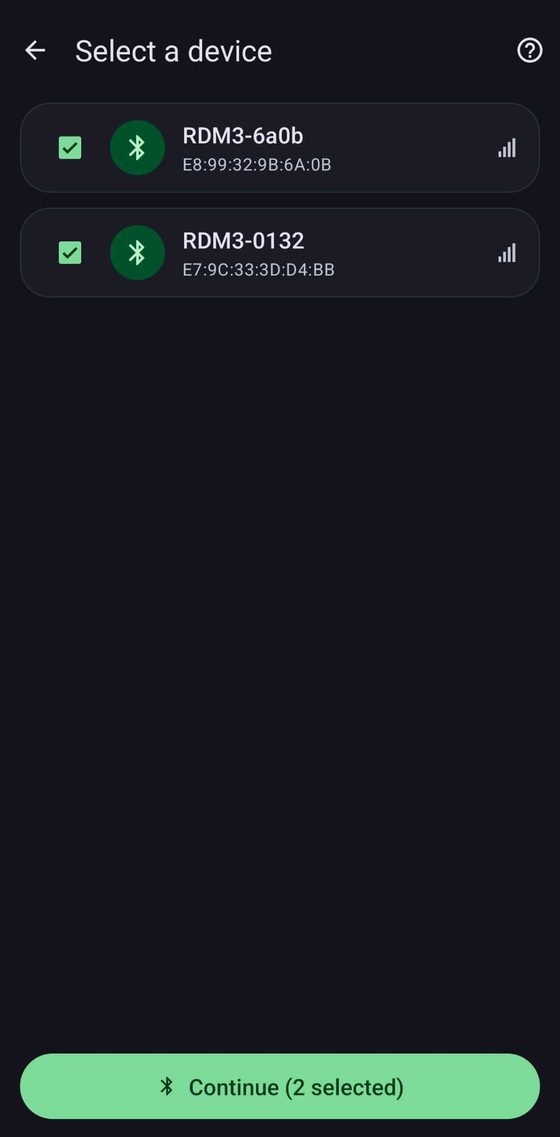
Select several manometers and the app upgrades them one after another. They must all be the same type: all EICM or all RDM3.

1. Select them all

Tick every manometer you want to upgrade, then tap Continue. Most phones can support between 4 and 7 Bluetooth devices connected at once. Going over this could result in dropped connections part way through updates.

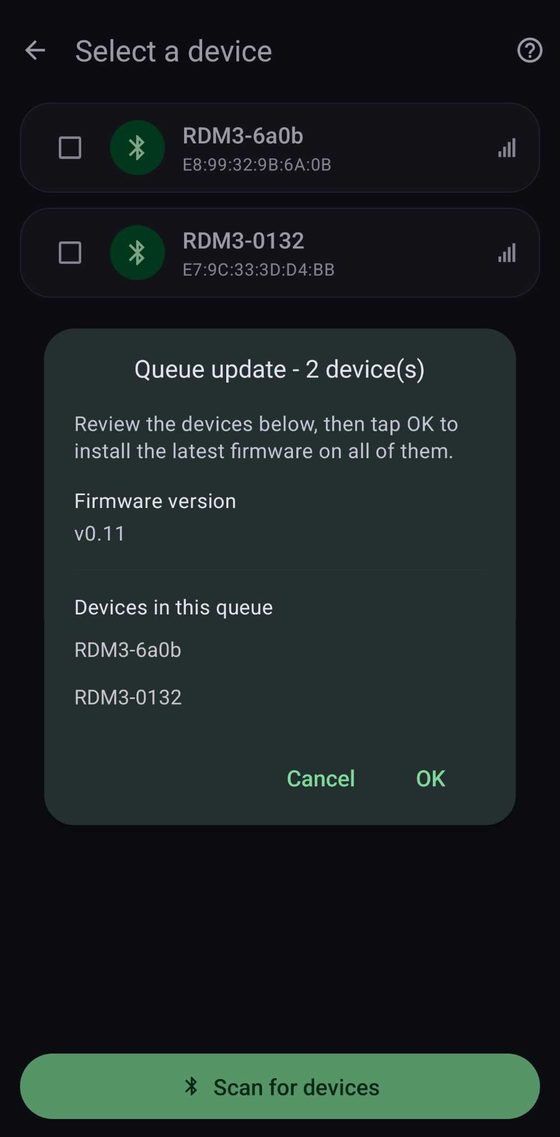
2. Review the queue

Check the firmware version and the list of manometers, then tap OK.

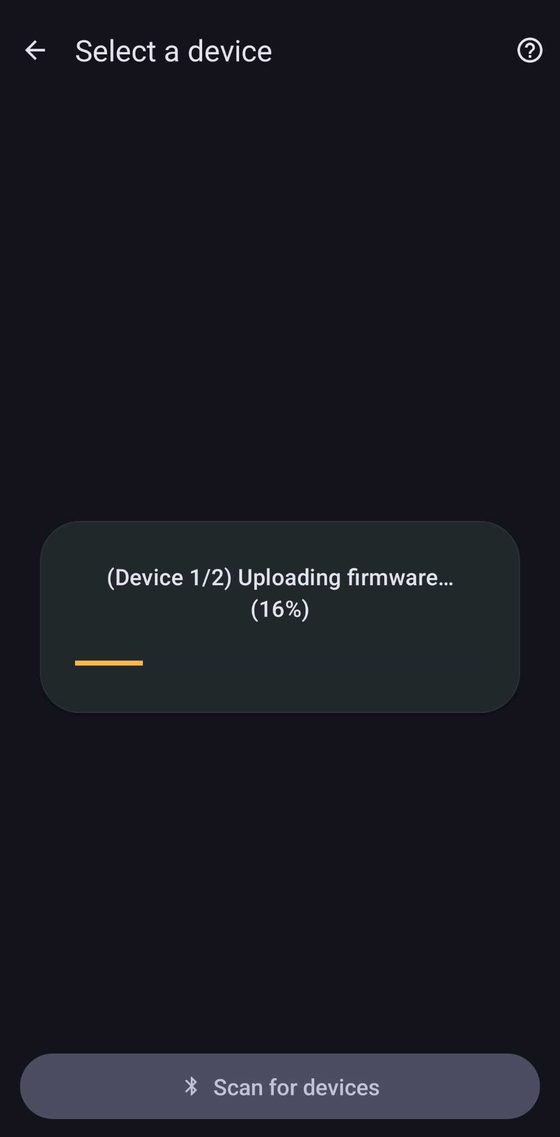
3. Upgrades run in turn

The status shows which manometer is being upgraded, for example Device 1/2.

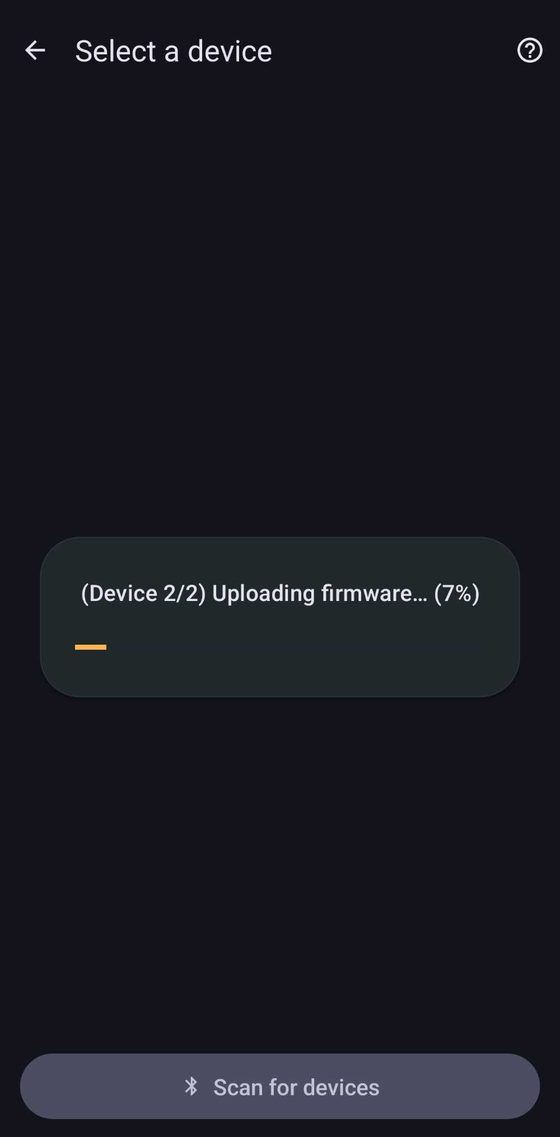
4. …then the next one

When one finishes and restarts, the app moves on to the next one by itself.

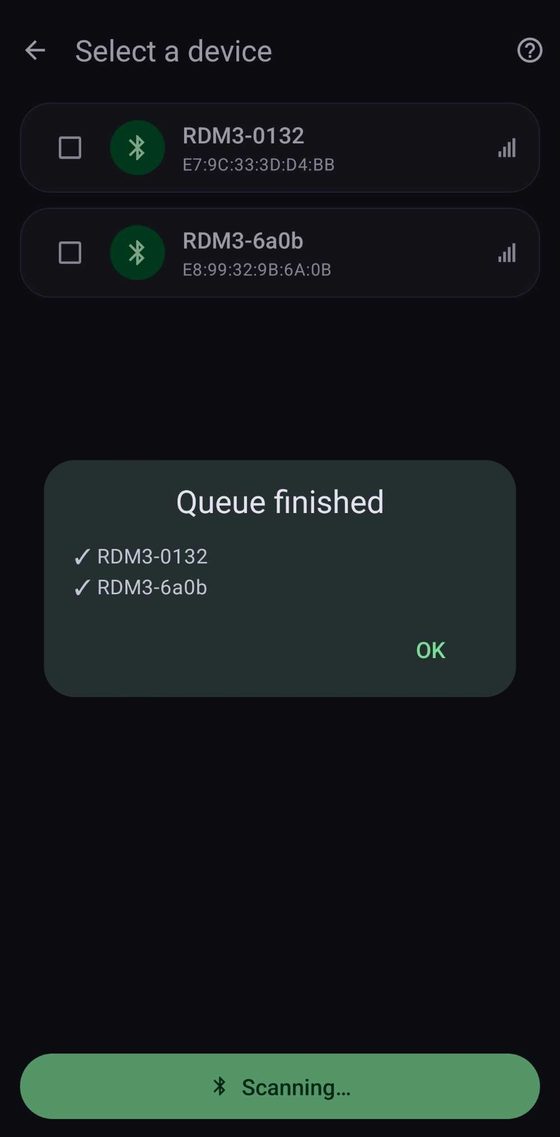
5. Queue finished

A summary shows the result for each manometer. Tap OK.

  • Manometers in a queue restart on their own, so there’s no Confirm and Reboot step.
  • Tapping Cancel stops the whole queue. Manometers that already finished keep their new firmware.

Troubleshooting

Device list after scanning has stopped

  • Make sure the manometer is turned on and close to your phone.
  • Disconnect it from GammaGuard or any other app. The manometer won’t show up while another app is connected to it.
  • Scanning stops after 30 seconds. Tap Scan for devices to search again.
  • If an update failed, your manometer now shows as “CT008-” followed by the last 4 characters of the Mac.
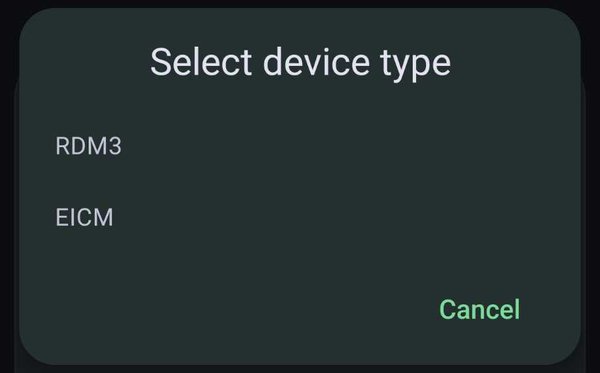
Select device type dialog listing RDM3 and EICM

The manometer didn’t identify itself, which usually means it has no firmware installed yet. Choose the type that matches your unit: EICM for units sold in Canada, RDM3 for units sold in the US.

Warning: choosing the wrong type could damage the hardware. If you’re not sure which one you have, contact us before continuing.
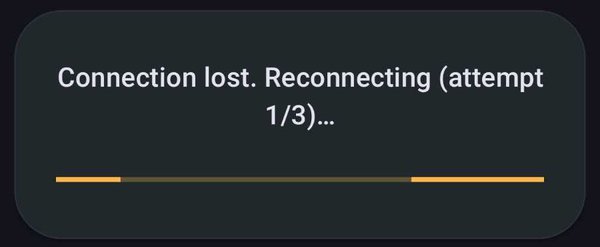
Connection lost, reconnecting attempt 1 of 3

The Bluetooth connection dropped. The app reconnects by itself, up to 3 times, and carries on with the upgrade.

  • Move your phone closer to the manometer.
  • Keep the manometer turned on, and don’t close the app.
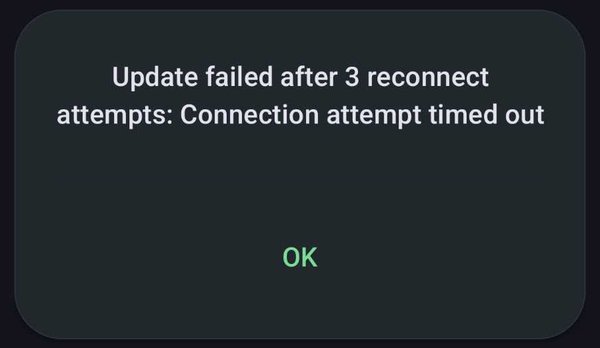
Update failed after 3 reconnect attempts

The app couldn’t reconnect to the manometer. Tap OK, then:

  • Restart the manometer.
  • Move your phone closer to it.
  • Tap Scan for devices and run the upgrade again.
  • You may be asked to verify the device type.
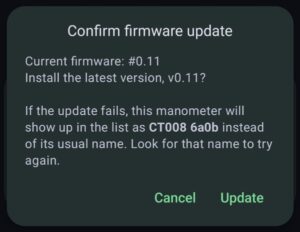
 

If Current firmware already shows the latest version, your manometer already has the upgrade. Tap Cancel.

An upgrade that has already started keeps running in the background, and a notification shows its progress. Tap the notification to go back to the app. It’s still best to keep the app open until the upgrade finishes.

The app needs Bluetooth permission to find and connect to your manometer. Depending on your Android version it also needs location permission, and it needs notification permission to show upgrade progress. If you denied a permission, open your phone’s Settings → Apps → EIC Firmware Updater → Permissions and turn it on.

Still stuck? Contact us at admin@eic.nu or (306) 974-6055.